
bnbfinder is a direct vacation rental marketplace with 25 years of experience connecting travelers with unique accommodations. With over 1,300 property managers and 100,000 properties joining since May 2023, bnbfinder enables commission-free bookings, eliminating costly intermediaries. The platform saves hosts and travelers 15-20% by charging no commissions or fees. It offers easy onboarding, promotes your brand, and ensures you control the guest relationship and booking process, supporting a seamless direct booking experience.
How it Works
How it Works
Synchronisation
Your calendars, prices, property information and photos will be synchronised with the Channel. Bookings coming from the Channel will block your Channel Manager and/or PMS calendar.
Commissions
There is no commission on any booking. The channel charges a flat monthly rate starting at $4.99 per month per listing.
Confirmations
Channel sends confirmation to the client and to you. You must arrange check-in details yourself
Cancellations
You are in charge of collecting the payments.
Payments
The channel accepts your own cancellation policy.
Deactivation
If you deactivate or delete a property in Channel Manager or in your PMS it will automatically be removed from channel after 24 hours
💡Minimum requirements to connect
Minimum number of properties: 1
Connecting to bnbfinder
Connecting to bnbfinder
In Boom: Open the Channels page and navigate to “Channels”

Select bnbfinder to connect the channel.

Your connection is now being validated in the background. If the validation is passed successfully, the Connection Wizard is launched and you can go to the next step. If you are not eligible to connect to bnbfinder, an error is displayed.
Eligibility errors indicate violating initial channel requirements that need to be met before you establish the connection. You will not be able to go to the next step and finish the connection process unless the eligibility error is cleared away. In order to resolve it, follow the instructions displayed on the screen. Please, see an exemplary eligibility error below.

You are presented with a brief description on how the bnbfinder works. Read it carefully and confirm that you agree with it by ticking the checkbox below. Do not worry, once all the steps of the Connection Wizard are completed, you will still be able to view the How it works content again. Click the Save & Next button on the bottom of the page to move to the next step.

Tip: On the top of the page, you can view the progress of the Connection Wizard. Depending on the channel, the number of steps may differ. You can stop anywhere along the process. Upon next time you open the Connection Wizard, you will continue at the last completed step.
Follow the next steps displayed in BOOM.
Adding Properties
Adding Properties
Connect the property.
Depending on whether you already have some properties connected to bnbfinder or not, you are presented with two different options:
If it is the first property to be connected, click the Connect your first property button.

If it is the next property to be connected, click the Add more properties button.
Choose the properties to connect to the channel. You have a few options available.
Option 1: Connect all properties to the channel by clicking Select all properties.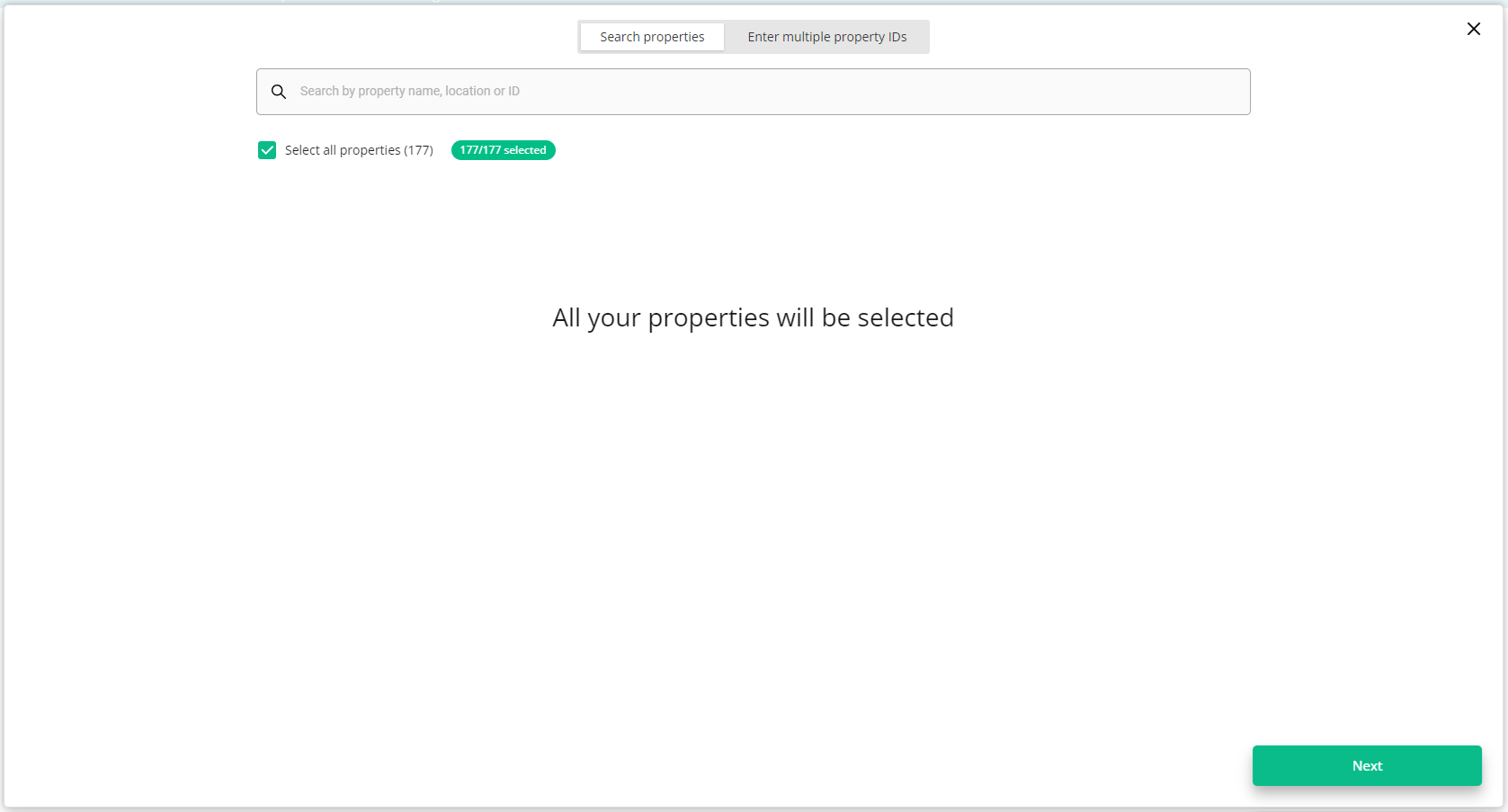
Option 2: Start typing (property name, location or full property ID) to filter out specific properties. Select the properties that you want to connect by ticking the checkboxes next to each of them. If you want to search for different properties using different keywords, just remove the text you are searching for and provide another. Newly selected properties will be added to the list.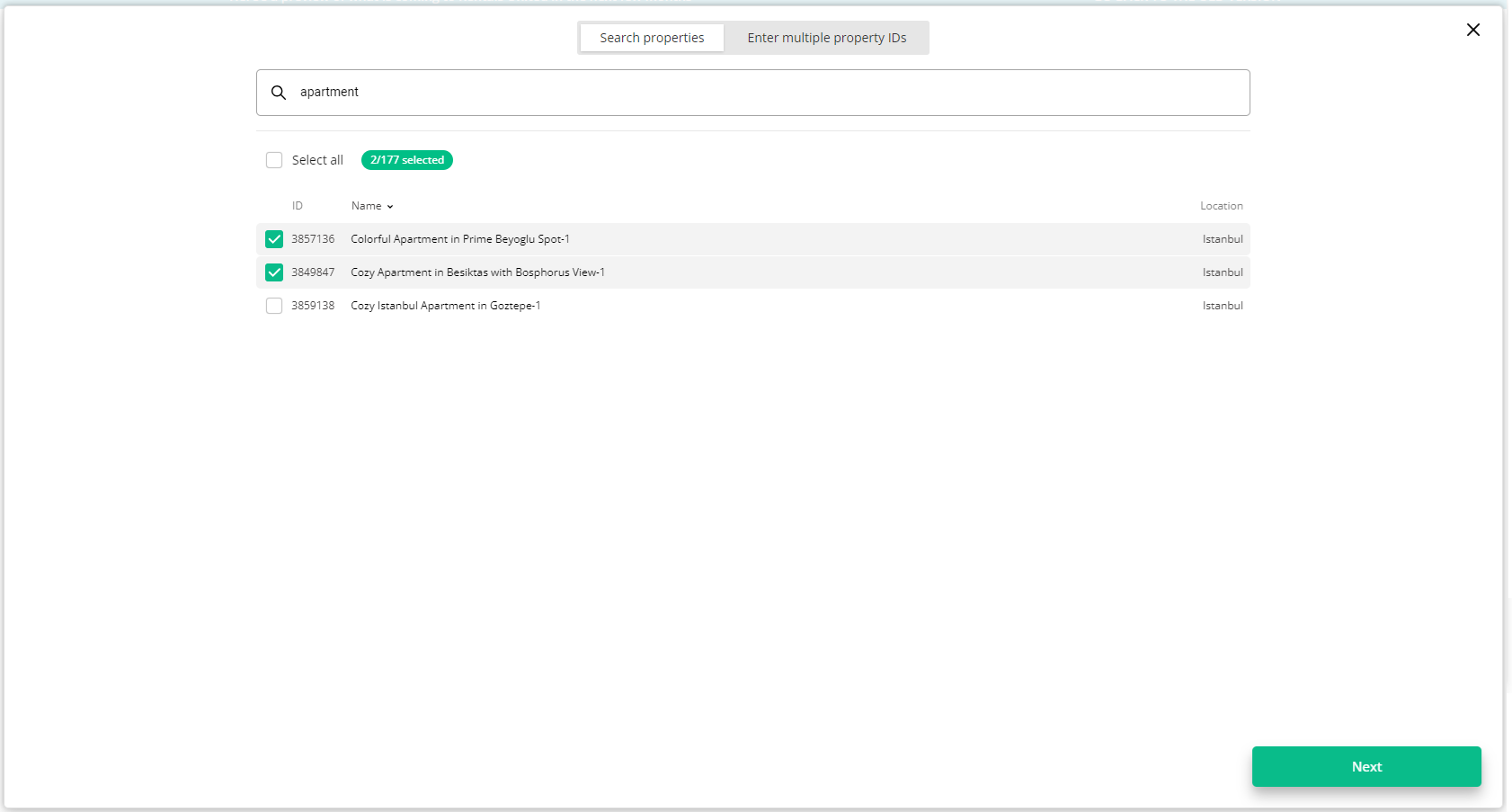
If you want to connect all filtered properties, click Select all. Note that only properties on the first page will be selected. If there are more properties that you want to connect, click Select all X results in the search.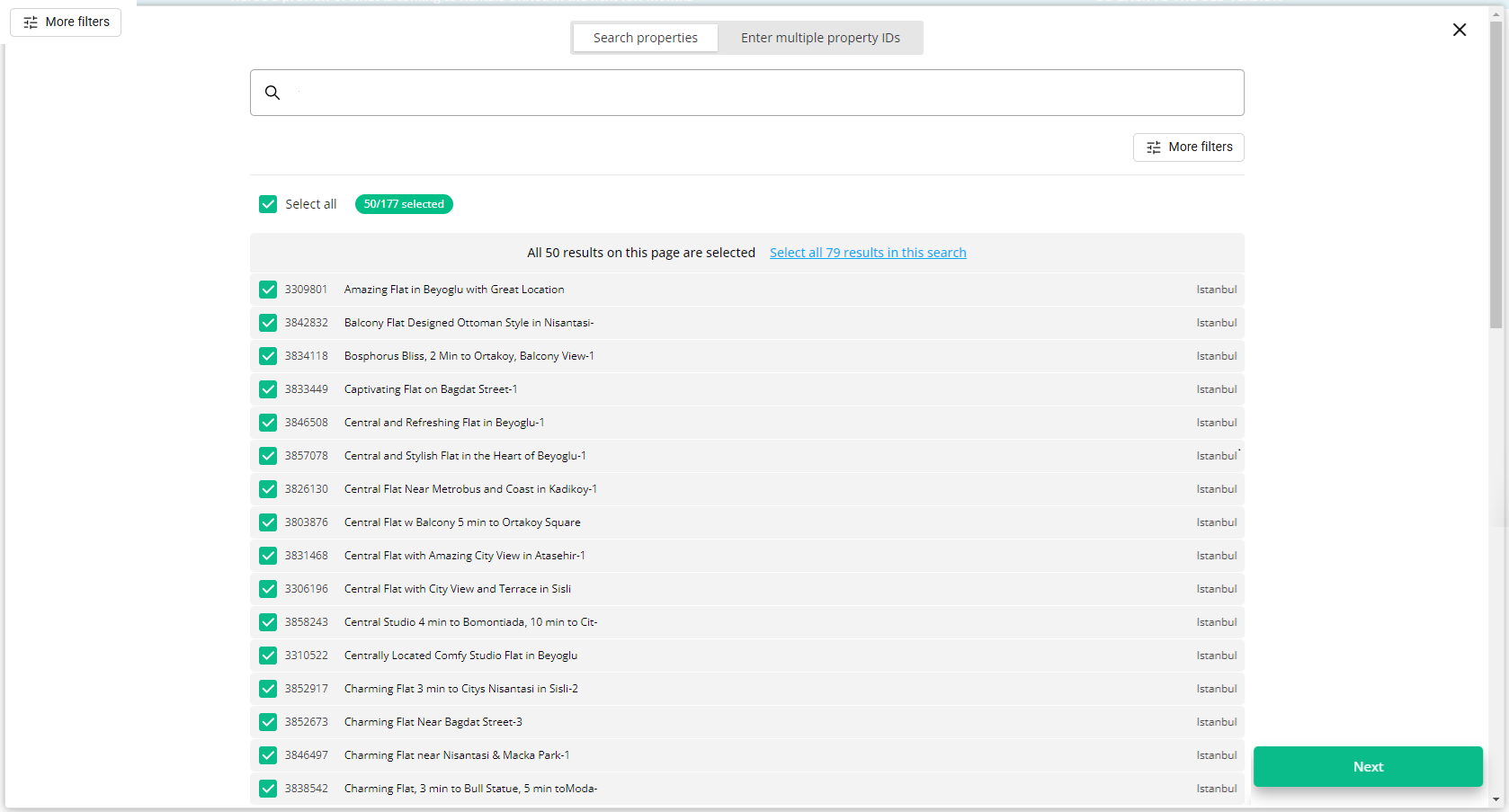
Option 3: Switch to the Enter multiple property IDs and provide a list of property IDs to be connected to bnbfinder. Separate the property IDs with a space, comma or new line.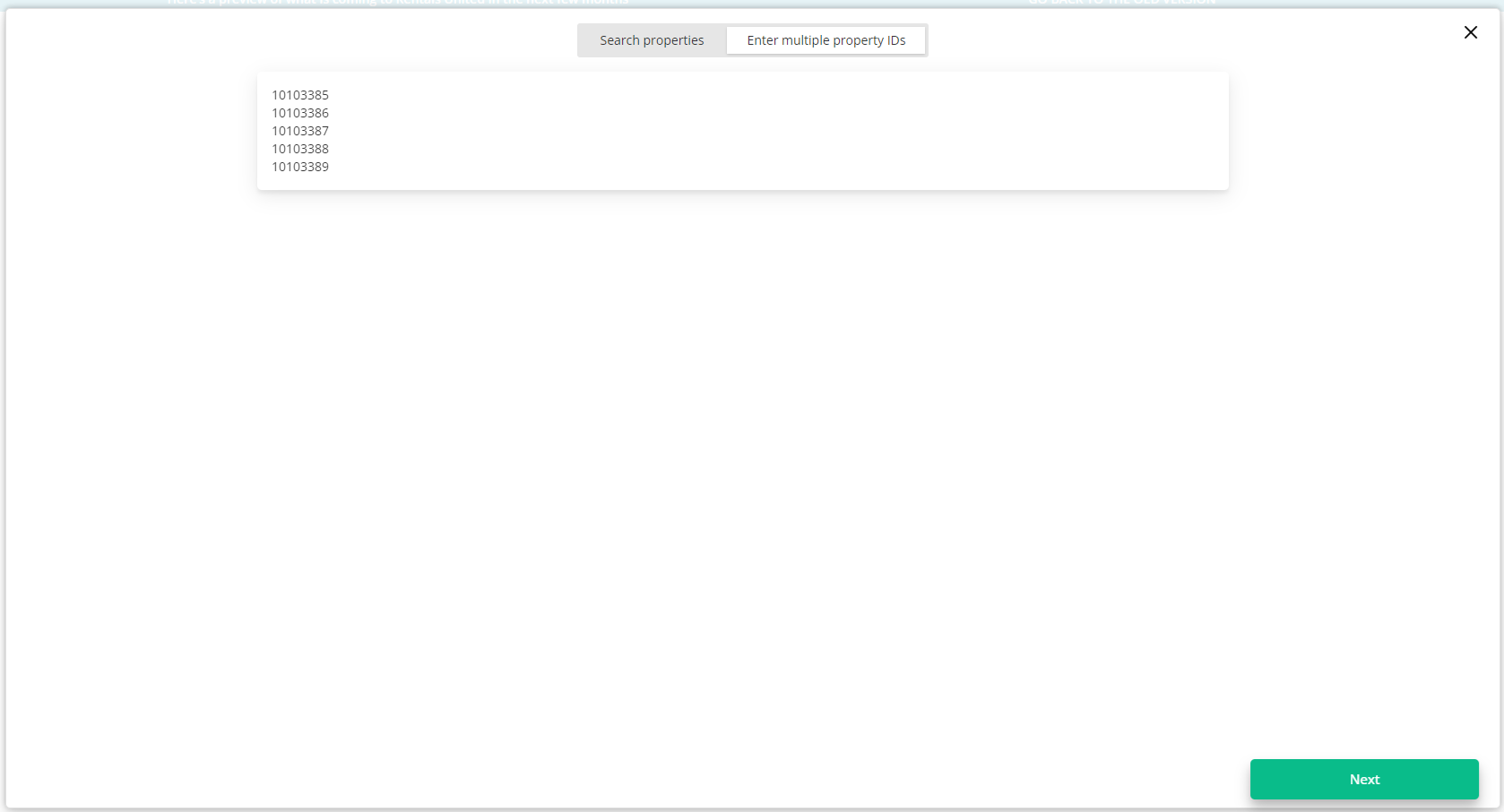
Click Next. You will see here the summary of all selected properties. Review the list and check if all properties that you wish to connect are included.
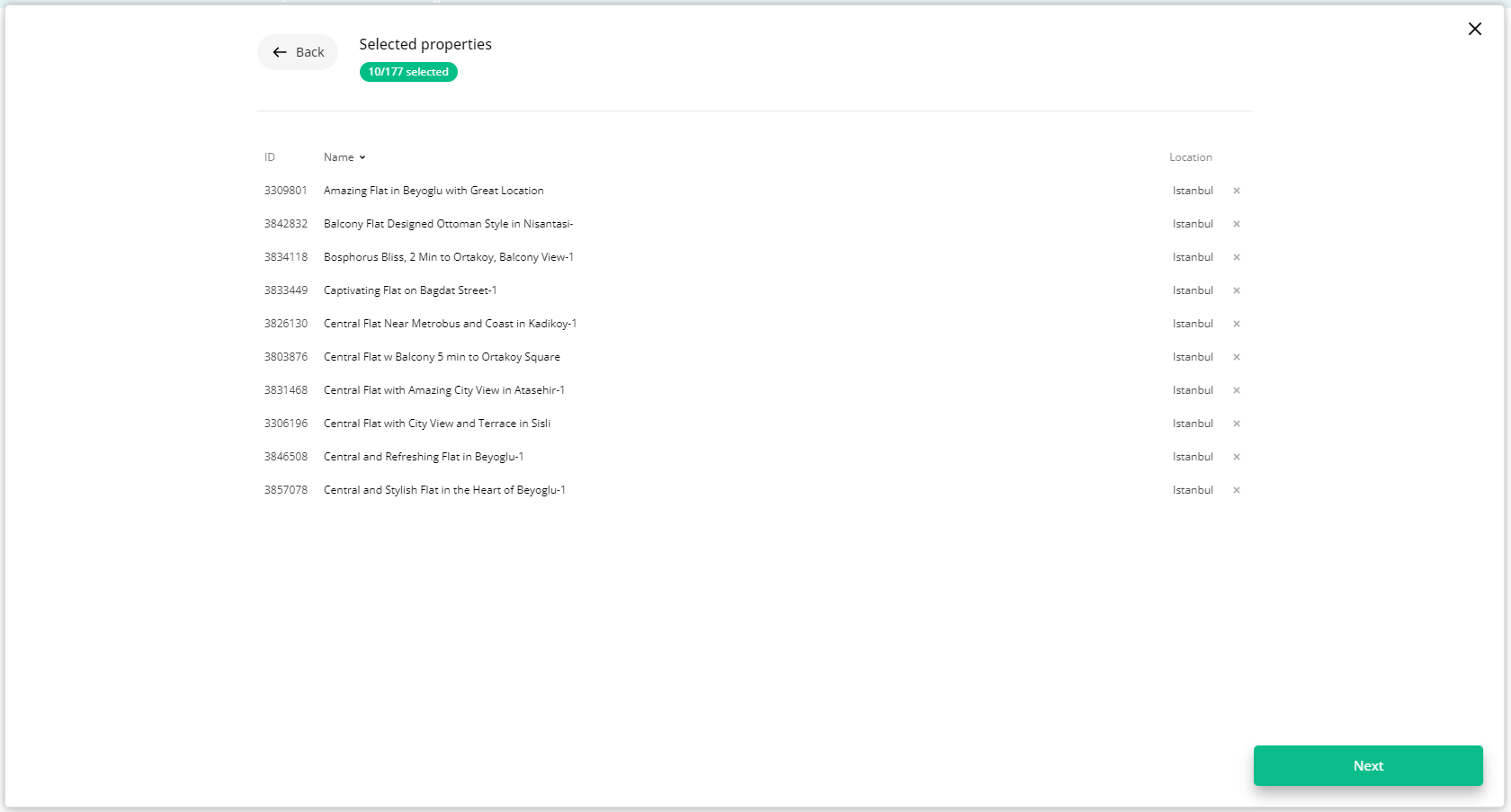
Click Next to proceed. The content quality is then analyzed, which should take up to a few minutes.
The summary of properties’ content is displayed.
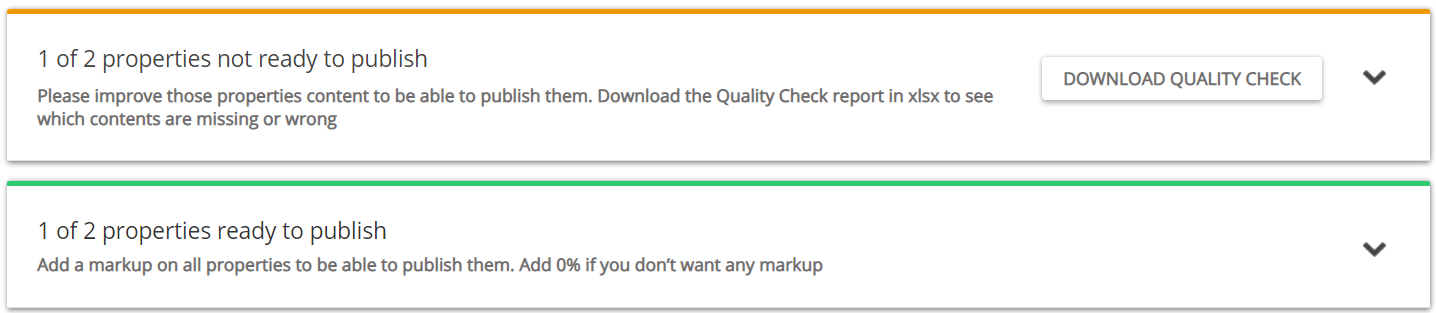
If some properties are not ready to publish, improve the content.
Check the content quality by unfolding the section with warning.
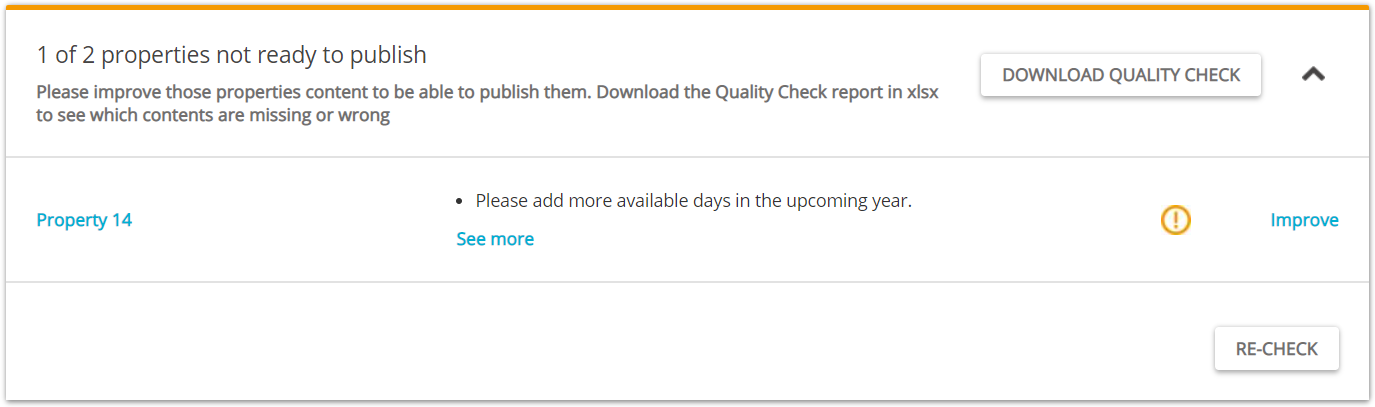
Verify if any data is missing or incorrect. It is possible to display the errors by unfolding the section. For more detailed summary of errors, download the XLSX report by clicking the Download Quality Check button.
Click the Improve button. The Edit property page is opened in a new tab.
Correct the content indicated in the report in the Edit property page.
Go back to the Property List and click the Re-check button. If no further errors are displayed, the property is ready to publish.
If the properties are ready to publish, adjust the markup for each of them. You can adjust the mark-up for each property one by one or apply the same mark-up value for all at once.
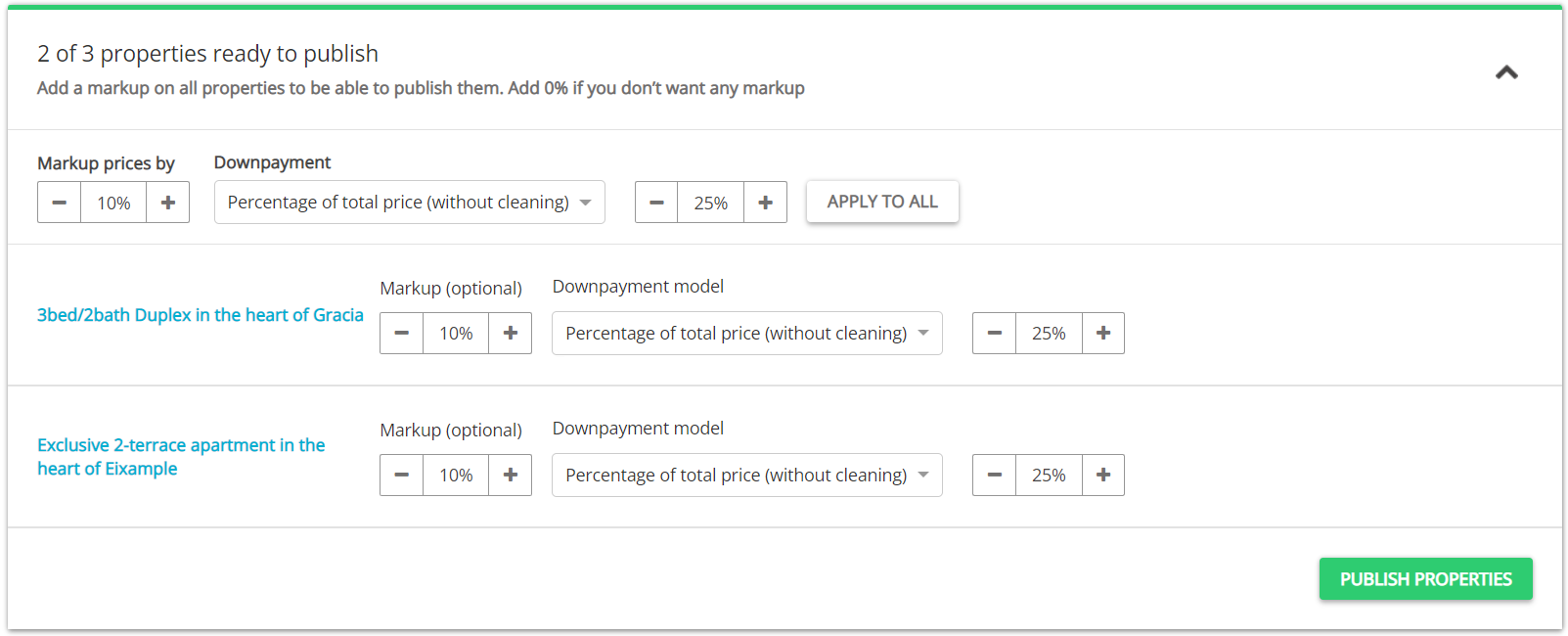
If the properties are ready to publish, adjust the markup for each of them. You can adjust the mark-up for each property one by one or apply the same mark-up value for all at once.
Click the Publish properties button.
The published properties enter the Pending status. The bnbfinder reviews the connections requests.
💡Tip: Hover over the
 Pending status icon. You may provide the live link to this property being listed in the bnbfinder website. Rentals United does not have access to information whether it is live or not. Note it is not mandatory, but properties with no live link will not enter the
  Active status.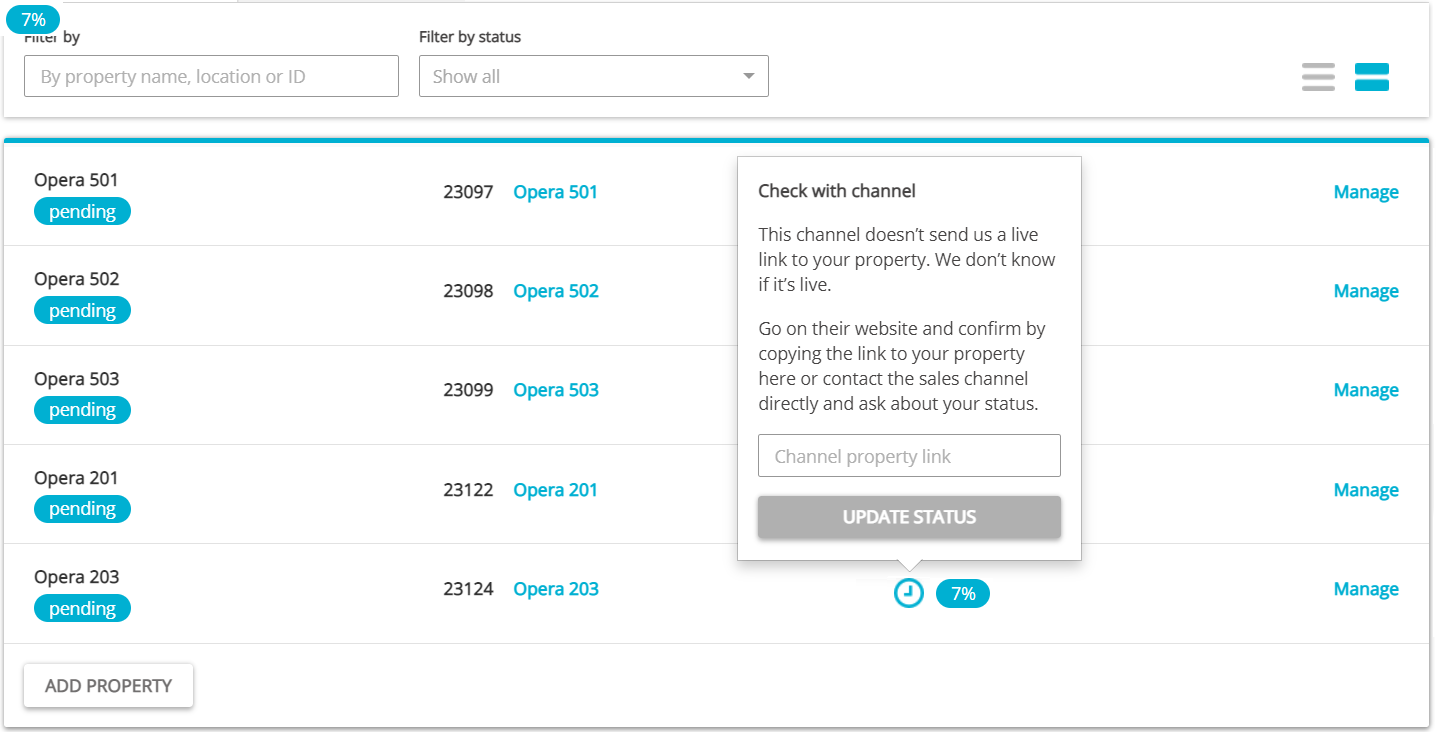
The property status changes to Active and you can receive reservations now.
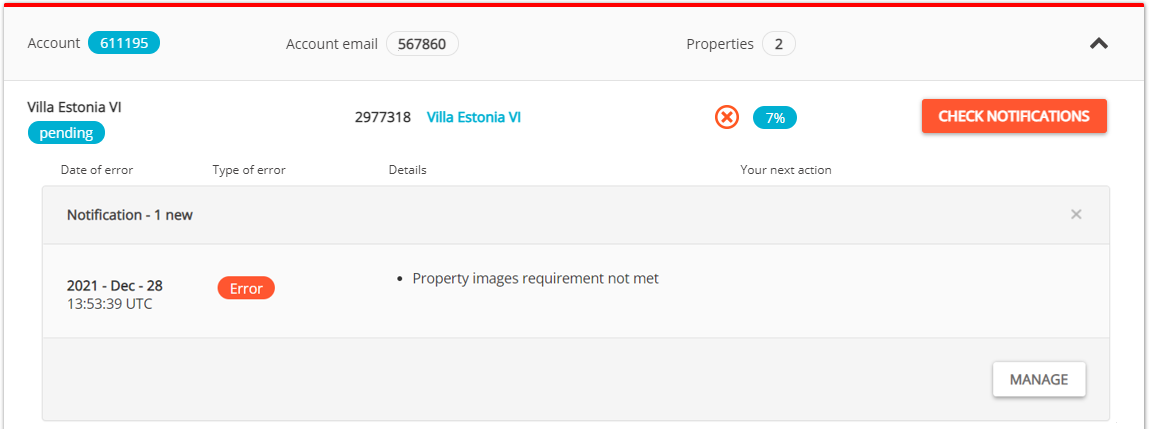
💡Tip: It may happen that the verification reveals some errors. In such a case, perform the suggested steps. If the error persists, contact the bnbfinder Support Team in the first place.
Updating Listings
Updating Listings
Go to
 module.
Choose the listing you want to edit, by clicking on the
 button.
Under the
 menu, you can update your listings' calendar, general information, finance, amenities, images, and block rules. To learn more, check out this article.

⚠️bnbfinder retrieves the property data per regular intervals. Hence, after the property content is updated in BOOM, it is the bnbfinder that is responsible for correct data retrieval. It is not possible to trigger the update from BOOM.
Unlisting from Channel
Unlisting from Channel
Search for the property you want to deactivate by scrolling down or filtering the property out.
Click the Manage button.
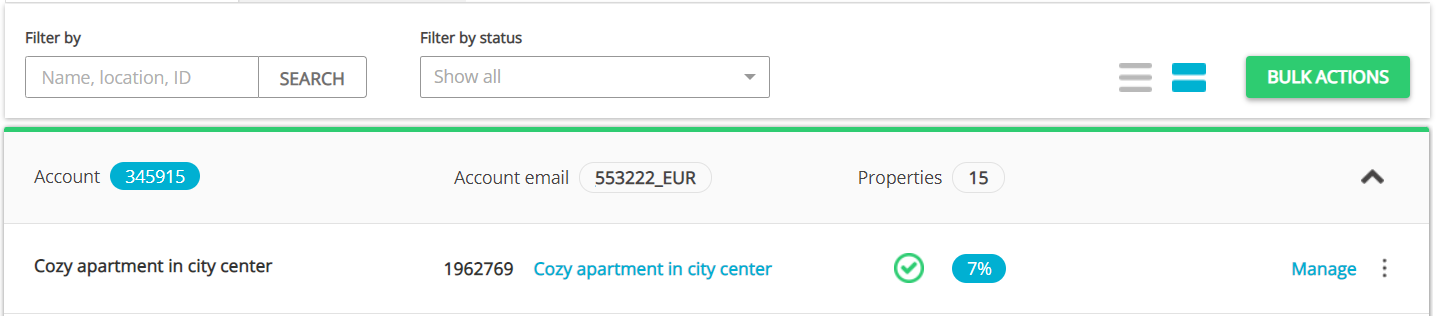
A property management page is opened.

Click the Disconnect button.
A pop-up window is displayed. Confirm the action by clicking the Yes, disconnect button.
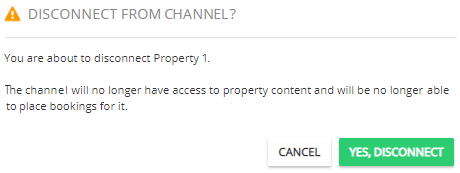
🗒️Note: Now, no bookings can be made for this property through bnbfinder. bnbfinder will unlist your property. You can start advertising the listing any time by clicking the Activate button next to the property.